
📱💻 Optimal Viewing Experience
Full-Screen Tables Mode 📱💻
Click View larger version in the bottom right of each table for an immersive experience.
All Data Filtering links open in full-screen-tables mode as well.
Data Filtering 📱💻
Data Filtering
Use the links below each table to narrow the data and open it in its own full-screen view.
Desktop Tips 💻
Enhanced Features
Utilize a desktop browser for customizable display, filter, group, sort and search capabilities in all full-screen table views.Search Tip
Remember, the 🔍 icon is your go-to for searching.
Documint Viewer on Mobile 📱
Hey There, Band Fanatics & Spectators!
Ready to make your Documint outputs look their absolute best on your phone? Here’s how to get the sharpest, most zoomable view of your documents.
Optimize your Documint PDF viewer experience in your mobile browser…
Locate the ︙ menu icon in the top-right corner of your PDF Documint viewer in your mobile browser.
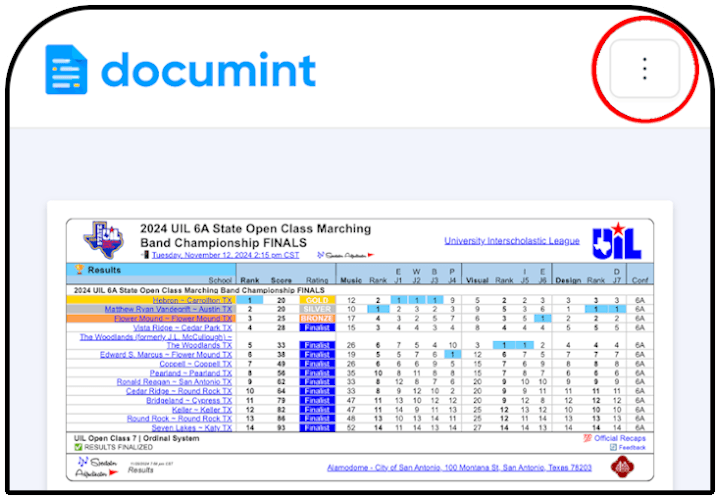
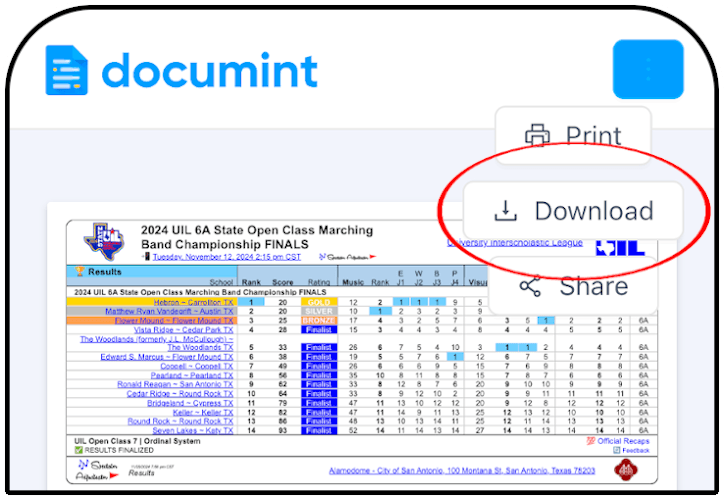
Tap on this menu and select Download to get a scalable version of the output on your mobile screen, allowing you to easily zoom in and out using two fingers for enhanced readability.
Full-Screen Mobile App 📱
Hey There, Band Fanatics & Spectators!
Turn SpectatorAdjudicator.com into a true full-screen, native-like app experience right on your phone or tablet by installing your own free Progressive Web App (PWA). This gives you a distraction-free viewing environment with no browser clutter.
Add Mobile App…
iOS Users (Safari on iPhone or iPad)…
Important Note…
Add to Home Screen creates a QUICK full-screen PWA using Safari’s generic default icon.
Make App from Web URL creates a full-screen PWA giving you full control—you can use our custom icon from below or choose any image from your Photos.
Add to Home Screen (default icon)…
Open Safari and go to www.SpectatorAdjudicator.com.
Tap the Share icon (square with upward arrow) at the bottom.
Scroll and tap Add to Home Screen.
On Add to Home Screen page, toggle Open as Web App = ON.
Tap Add.
A default app icon will load onto your Home Screen.
There is no option to change the app icon.
Make App from Web URL (custom icon)…
Obtain custom icon from below.
Open Safari and go to www.SpectatorAdjudicator.com.
Tap the Share icon (square with upward arrow) at the bottom.
Scroll and tap Make App from Web URL.
On “Website’s Name?” prompt, type “SA.com” or something else to your liking.
Tap Done.In Photos preview gallery, tap your choice of custom icon.
Tap Allow when the following prompt appears:
“This website is trying to download a configuration profile. Do you want to allow this?”Tap Close when the following prompt appears:
“Profile Downloaded: Review the profile in the Settings app if you want to install it.”Open Settings app.
Scroll and tap General.
Scroll and tap VPN & Device Management.
On VPN & Device Management screen,
under Downloaded Profile section, tap the profile you just created above.Tap Install on Install Profile screen.
If prompted “Enter your passcode”, enter your passcode.
Tap Next on Consent screen
(“Message from “Me”: Choose ‘Install’ and enter passcode if prompted.”)Tap Install on Warning screen
(“Unsigned Profile: The profile is not signed”).Tap Install when the following prompt appears:
“Install Profile: Installing this profile will change setting on your iPhone.”Tap ✔️ on Profile Installed screen.
Close Settings app.
Your custom app icon will load onto your Home Screen.
Android Users (Chrome)…
Open Chrome and go to www.SpectatorAdjudicator.com.
Tap the three-dot menu in the top right.
Tap Add to Home Screen (or Install app).
Confirm and tap Add or Install.
🚀 Pro Tip for Both…
Always launch the site from your Home Screen icon for the true full-screen, native-like app experience—fast and distraction-free!
🎁 Bonus: Use Our Official Home Screen Icon!
We created a custom icon just for you.
How to Save Our Custom Icon…
Click the Download Icon button.
A new browser tab will open.Tap the Share icon (square with upward arrow) at the bottom.
Scroll and tap Save Image.
The custom icon saves to your Photos gallery.